> ## Documentation Index
> Fetch the complete documentation index at: https://docs.aviatrix.com/llms.txt
> Use this file to discover all available pages before exploring further.
# Transitive Routing with Edge Spoke Gateway
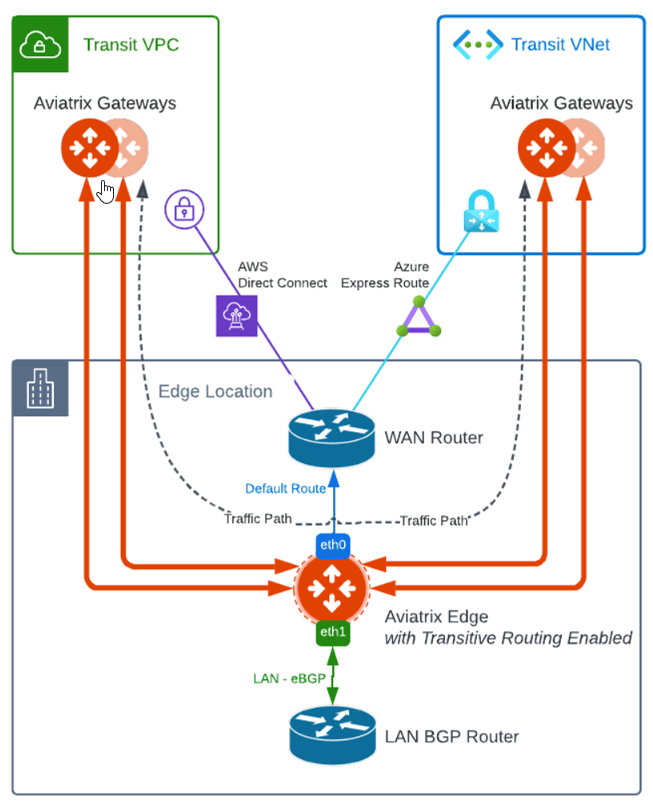
> The Transitive Routing feature allows an Edge Spoke Gateway to forward routes between multiple Transit Gateways that are connected to it. You have the option to enable or disable Transitive Routing for an Edge Spoke Gateway; it is disabled by default.
The Transitive Routing feature allows an Edge Spoke Gateway to forward routes
between multiple Transit Gateways that are connected to it. You have the option
to enable or disable Transitive Routing for an Edge Spoke Gateway; it is
disabled by default.
 ## Configuring Transitive Routing
To configure Transitive Routing for an Edge Spoke Gateway, follow these steps.
1. Attach the Edge Spoke Gateway to the first Transit Gateway. Follow the steps
in Attach Edge Gateway to
Transit Gateway.
2. Repeat and attach the Edge Spoke Gateway to the second Transit Gateway.
3. Go to *Cloud Fabric > Hybric Cloud > Edge Gateways* tab.
4. Click *Spoke Gateways*.
5. Select the Edge Spoke Gateway.
6. In the Edge Spoke Gateway's *Settings* tab, expand the *Routing* section.
7. Set the *Transitive Routing* toggle to *On*.
8. Verify the routes on each Aviatrix Transit Gateway.
## Configuring Transitive Routing
To configure Transitive Routing for an Edge Spoke Gateway, follow these steps.
1. Attach the Edge Spoke Gateway to the first Transit Gateway. Follow the steps
in Attach Edge Gateway to
Transit Gateway.
2. Repeat and attach the Edge Spoke Gateway to the second Transit Gateway.
3. Go to *Cloud Fabric > Hybric Cloud > Edge Gateways* tab.
4. Click *Spoke Gateways*.
5. Select the Edge Spoke Gateway.
6. In the Edge Spoke Gateway's *Settings* tab, expand the *Routing* section.
7. Set the *Transitive Routing* toggle to *On*.
8. Verify the routes on each Aviatrix Transit Gateway.