> ## Documentation Index
> Fetch the complete documentation index at: https://docs.aviatrix.com/llms.txt
> Use this file to discover all available pages before exploring further.
# Transit Peering Over Public Network with Edge Spoke Gateway
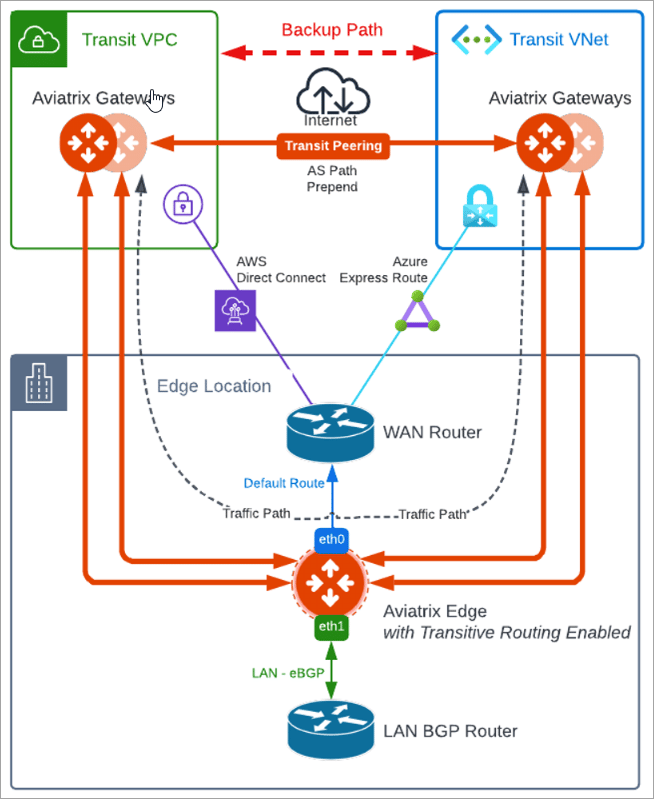
> If you have a multicloud environment across cloud service roviders (CSPs), for example, AWS and Azure, you can create Transit Gateway Peering over public network and use the Transit Gateway Peering as a secondary or backup path while the Edge Spoke Gateway with Transitive Routing enabled is...
If you have a multicloud environment across cloud service roviders (CSPs), for
example, AWS and Azure, you can create Transit Gateway Peering over public
network and use the Transit Gateway Peering as a secondary or backup path while
the Edge Spoke Gateway with Transitive Routing enabled is used as the primary
path for forwarding traffic.
 ## Configuring Transit Peering over Public Network with Edge Spoke Gateway
To create Transit Peering over public network, follow these steps.
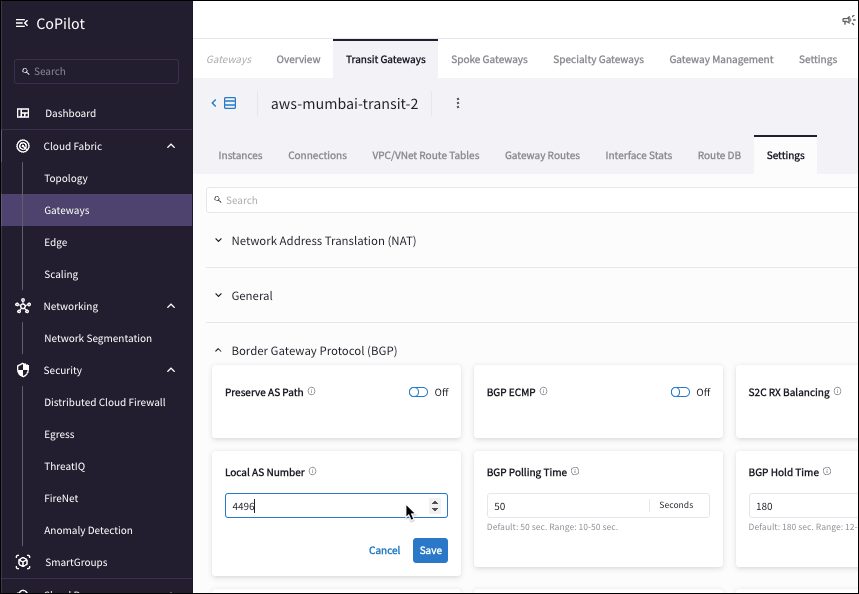
1. Ensure that you have AS numbers configured on both Transit Gateways.
1. In Aviatrix CoPilot, go to **Cloud Fabric > Gateways > Transit Gateways**
tab.
2. Select the Transit Gateway in one cloud service provider.
3. In the Transit Gateway's **Settings** tab, expand the **Border Gateway
Protocol (BGP)** section.
4. Ensure the **Local AS number** is configured, and click **Save**.
Make note of this AS number to use later to set AS Path Prepend.
## Configuring Transit Peering over Public Network with Edge Spoke Gateway
To create Transit Peering over public network, follow these steps.
1. Ensure that you have AS numbers configured on both Transit Gateways.
1. In Aviatrix CoPilot, go to **Cloud Fabric > Gateways > Transit Gateways**
tab.
2. Select the Transit Gateway in one cloud service provider.
3. In the Transit Gateway's **Settings** tab, expand the **Border Gateway
Protocol (BGP)** section.
4. Ensure the **Local AS number** is configured, and click **Save**.
Make note of this AS number to use later to set AS Path Prepend.
 2. Repeat Step 1 to set the Local AS Number for the other Transit Gateway in
another cloud service provider.
3. Peer the Transit Gateways.
1. Go to **Cloud Fabric** > **Gateways** > **Transit Gateways** tab.
2. Locate the Transit Gateway in one cloud service provider and click the
Edit icon.
3. In Edit Transit Gateway, from the **Peer To Transit Gateways** dropdown
list, select the Transit Gateway in the other cloud service provider and
click **Save**.
* Both Transit Backbone VNE/VPCs need to match configuration. \* You cannot
peer non-HA Transit Gateway with another Transit Gateway in HA mode.
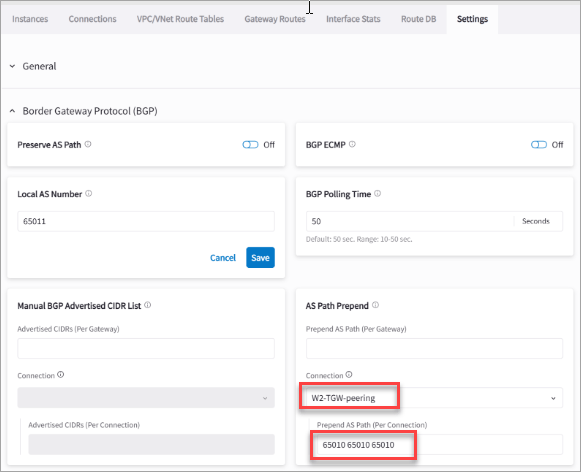
4. Set the AS Path Prepend.
1. Go to **Cloud Fabric** > **Gateways** > **Transit Gateways** tab.
2. Select the Transit Gateway where you want to set Prepend.
3. In the Transit Gateway's **Settings** tab, expand **Border Gateway
Protocol (BGP)** section.
4. Scroll down to **AS Path Prepend**, and select the Transit Peering
connection name.
You can configure per connection or per gateway (all connections).
5. In **Prepend AS Path (Per Connection)** field, input the Transit Gateway
Local AS Number three times separated by space.
2. Repeat Step 1 to set the Local AS Number for the other Transit Gateway in
another cloud service provider.
3. Peer the Transit Gateways.
1. Go to **Cloud Fabric** > **Gateways** > **Transit Gateways** tab.
2. Locate the Transit Gateway in one cloud service provider and click the
Edit icon.
3. In Edit Transit Gateway, from the **Peer To Transit Gateways** dropdown
list, select the Transit Gateway in the other cloud service provider and
click **Save**.
* Both Transit Backbone VNE/VPCs need to match configuration. \* You cannot
peer non-HA Transit Gateway with another Transit Gateway in HA mode.
4. Set the AS Path Prepend.
1. Go to **Cloud Fabric** > **Gateways** > **Transit Gateways** tab.
2. Select the Transit Gateway where you want to set Prepend.
3. In the Transit Gateway's **Settings** tab, expand **Border Gateway
Protocol (BGP)** section.
4. Scroll down to **AS Path Prepend**, and select the Transit Peering
connection name.
You can configure per connection or per gateway (all connections).
5. In **Prepend AS Path (Per Connection)** field, input the Transit Gateway
Local AS Number three times separated by space.
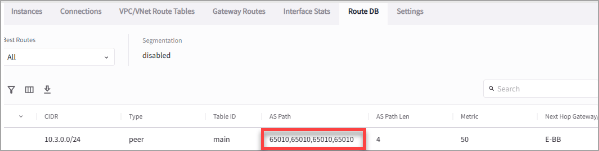
 5. To view the AS Prepended routes:
1. Go to **Cloud Fabric** > **Gateways** > **Transit Gateways** tab.
2. Select the Transit Gateway where you set the As Path Prepend.
3. Click the Transit Gateway's **Route DB** tab to view the prepended routes.
5. To view the AS Prepended routes:
1. Go to **Cloud Fabric** > **Gateways** > **Transit Gateways** tab.
2. Select the Transit Gateway where you set the As Path Prepend.
3. Click the Transit Gateway's **Route DB** tab to view the prepended routes.