> ## Documentation Index
> Fetch the complete documentation index at: https://docs.aviatrix.com/llms.txt
> Use this file to discover all available pages before exploring further.
# Set Up AgentGuard
> Connect your AWS account and Kubernetes cluster so that AgentGuard can discover your AI workloads. This setup is the prerequisite for both levels of AgentGuard visibility.
This guide describes how to connect your AWS account and Kubernetes workloads to
AgentGuard so that it can discover your AI workloads.
AgentGuard phase one supports AWS only. Support for additional clouds is planned for the future.
After completing the setup, you can configure either level of visibility as per your requirements:
* [Get Basic Visibility Without a Gateway](/docs/cloud/security/agentguard/getting-started/agentguard-without-gateway)
* [Get Deep Visibility and Enforcement With a Gateway](/docs/cloud/security/agentguard/getting-started/agentguard-with-gateway)
## AgentGuard Setup Overview
The AgentGuard setup workflow is as follows:
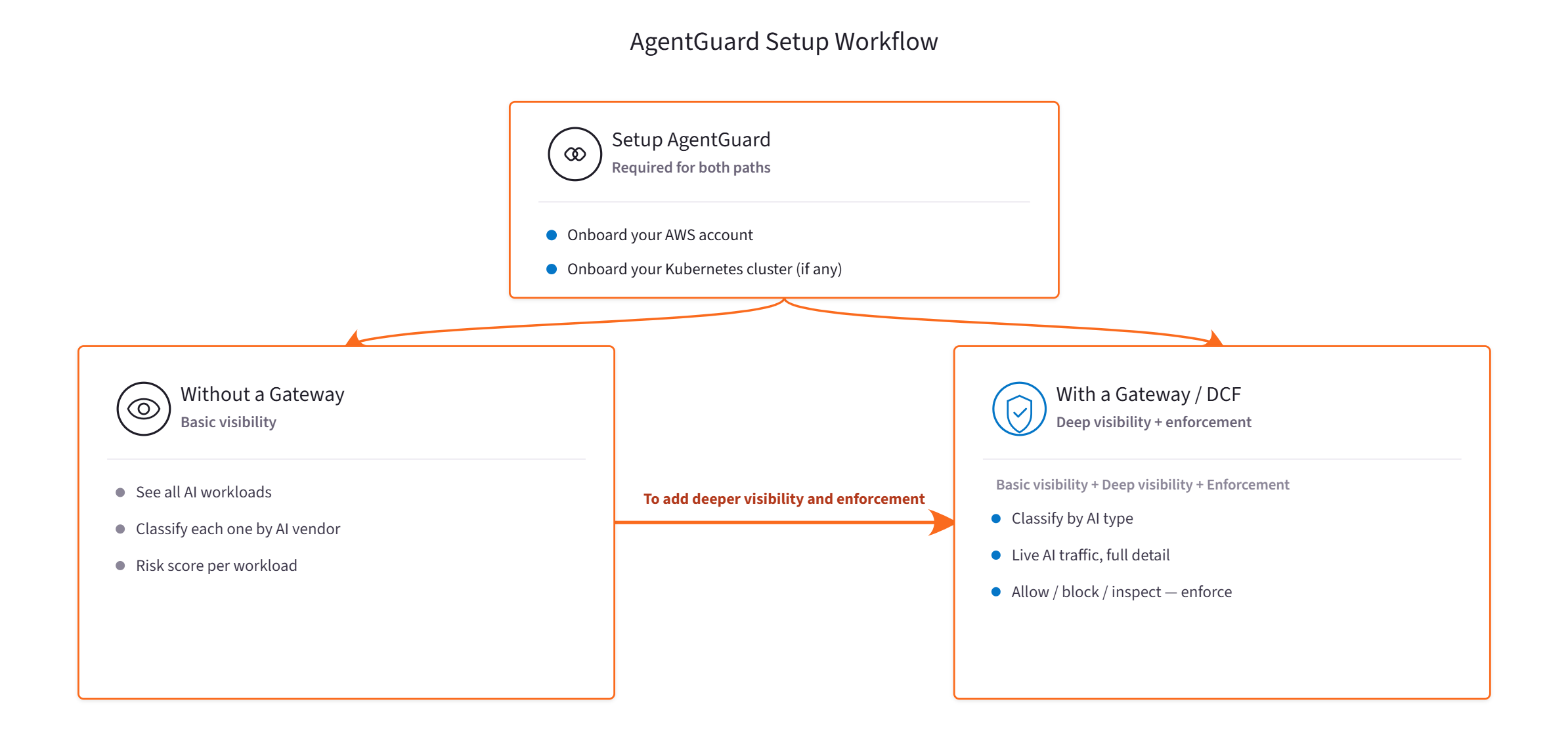 1. *Set up AgentGuard* - Connect your Cloud account and Kubernetes cluster so that AgentGuard can discover your AI workloads.
2. *Configure the level of visibility* - Configure the level of visibility as per your requirements:
* **[Without a gateway](/docs/cloud/security/agentguard/getting-started/agentguard-without-gateway)**
provides an inventory of every AI workload, a classification by vendor, and a
risk level for each workload, with no changes to your network.
* **[With a gateway](/docs/cloud/security/agentguard/getting-started/agentguard-with-gateway)**
adds full-detail AI traffic analysis and rule enforcement.
You get the deeper visibility and enforcement with a gateway when you require detailed traffic analysis and enforcement.
You can add a gateway at any time for deeper visibility and enforcement.
## Steps to Set Up AgentGuard
The following steps set up AgentGuard by onboarding your Cloud accounts and Kubernetes clusters so that AgentGuard can discover your AI workloads.
### Prerequisites
* Access to Aviatrix Cloud Console at
[console.cloud.aviatrix.com](https://console.cloud.aviatrix.com).
* An AWS account that you can onboard with an IAM role.
* The read-only IAM permissions listed in the
[AWS permissions](#aws-permissions-read-only) section.
AgentGuard phase one supports AWS only. Support for additional clouds is planned for the future.
### Step 1: Onboard Your AWS Account
Onboarding connects your AWS account so that AgentGuard can discover your AI
workloads. AgentGuard requires read-only access only.
1. *Set up AgentGuard* - Connect your Cloud account and Kubernetes cluster so that AgentGuard can discover your AI workloads.
2. *Configure the level of visibility* - Configure the level of visibility as per your requirements:
* **[Without a gateway](/docs/cloud/security/agentguard/getting-started/agentguard-without-gateway)**
provides an inventory of every AI workload, a classification by vendor, and a
risk level for each workload, with no changes to your network.
* **[With a gateway](/docs/cloud/security/agentguard/getting-started/agentguard-with-gateway)**
adds full-detail AI traffic analysis and rule enforcement.
You get the deeper visibility and enforcement with a gateway when you require detailed traffic analysis and enforcement.
You can add a gateway at any time for deeper visibility and enforcement.
## Steps to Set Up AgentGuard
The following steps set up AgentGuard by onboarding your Cloud accounts and Kubernetes clusters so that AgentGuard can discover your AI workloads.
### Prerequisites
* Access to Aviatrix Cloud Console at
[console.cloud.aviatrix.com](https://console.cloud.aviatrix.com).
* An AWS account that you can onboard with an IAM role.
* The read-only IAM permissions listed in the
[AWS permissions](#aws-permissions-read-only) section.
AgentGuard phase one supports AWS only. Support for additional clouds is planned for the future.
### Step 1: Onboard Your AWS Account
Onboarding connects your AWS account so that AgentGuard can discover your AI
workloads. AgentGuard requires read-only access only.
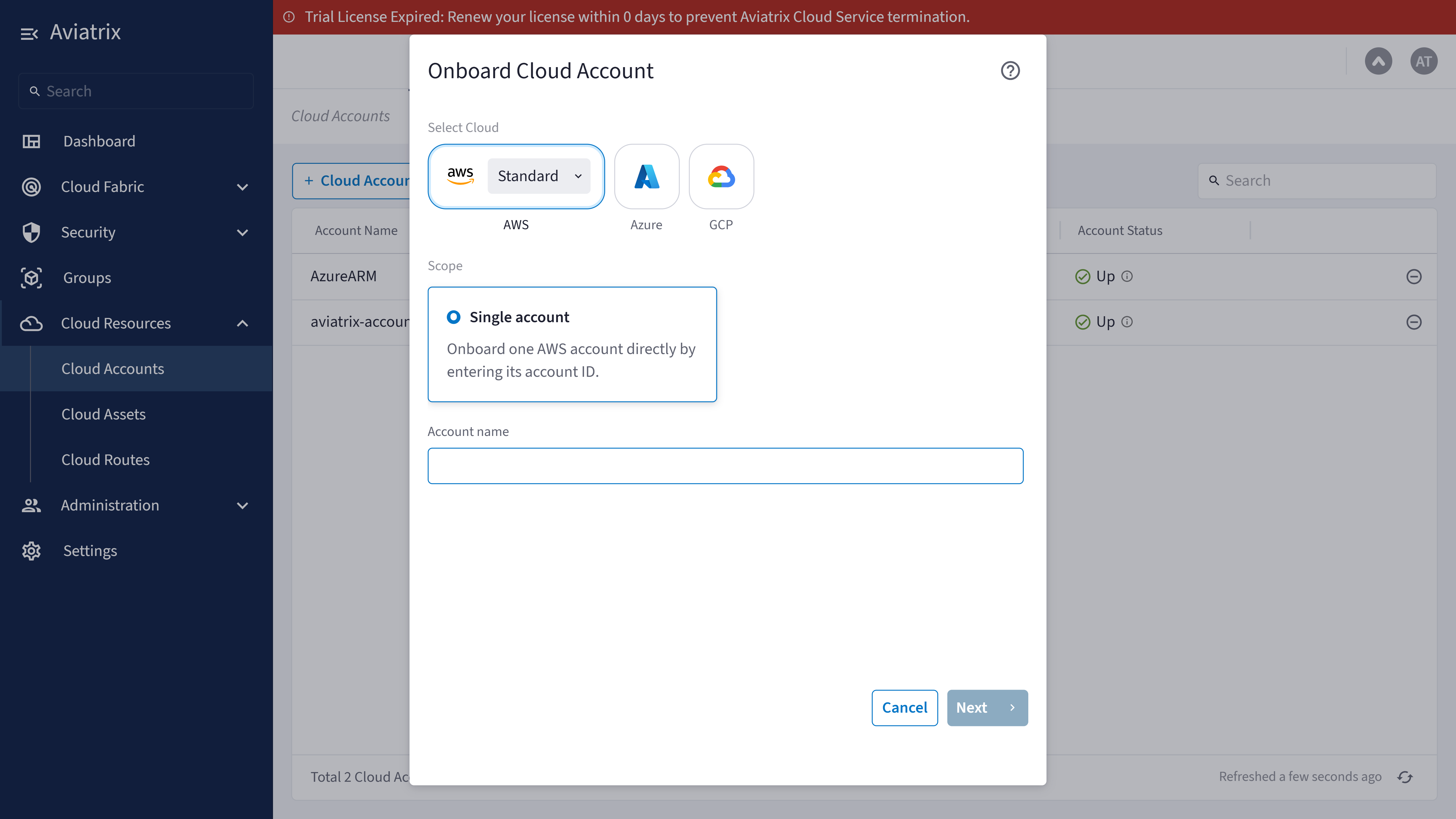 From the Aviatrix Cloud Console, navigate to **Cloud Resources > Cloud Accounts > +
Cloud Account**.
Enter an **Account Name**, select **AWS**, then select **AWS IAM Role**
and **CloudFormation Script**. Click **Launch CloudFormation** to create
the required IAM role in your AWS account, then copy the resulting
**AviatrixRoleAppARN** value and paste it into the **AWS Role ARN** field
in Aviatrix. For the complete onboarding procedure, see
[Onboard an AWS Cloud Account](/docs/cloud/platform-administration/onboard-offboard/aws-cloud-account-onboard).
AgentGuard phase one supports AWS only. Support for additional clouds is planned for the future.
Click **Next**. When the **Account Onboarded** message appears, click
**Onboard**.
Confirm that the account shows **Status = UP** with a recent last sync. Your
VPCs and Kubernetes clusters appear automatically under **Cloud Assets**.
If a required permission is missing, the validation error identifies the
specific permission. Add it to the role and validate again.
### Step 2: Onboard Your Kubernetes Cluster
Complete this step if you run AI workloads on Kubernetes. Onboarding the Kubernetes cluster
enables AgentGuard to identify your pods and resolve workloads to names rather
than IP addresses.
From the Aviatrix Cloud Console, navigate to **Cloud Resources > Cloud Accounts > +
Cloud Account**.
Enter an **Account Name**, select **AWS**, then select **AWS IAM Role**
and **CloudFormation Script**. Click **Launch CloudFormation** to create
the required IAM role in your AWS account, then copy the resulting
**AviatrixRoleAppARN** value and paste it into the **AWS Role ARN** field
in Aviatrix. For the complete onboarding procedure, see
[Onboard an AWS Cloud Account](/docs/cloud/platform-administration/onboard-offboard/aws-cloud-account-onboard).
AgentGuard phase one supports AWS only. Support for additional clouds is planned for the future.
Click **Next**. When the **Account Onboarded** message appears, click
**Onboard**.
Confirm that the account shows **Status = UP** with a recent last sync. Your
VPCs and Kubernetes clusters appear automatically under **Cloud Assets**.
If a required permission is missing, the validation error identifies the
specific permission. Add it to the role and validate again.
### Step 2: Onboard Your Kubernetes Cluster
Complete this step if you run AI workloads on Kubernetes. Onboarding the Kubernetes cluster
enables AgentGuard to identify your pods and resolve workloads to names rather
than IP addresses.
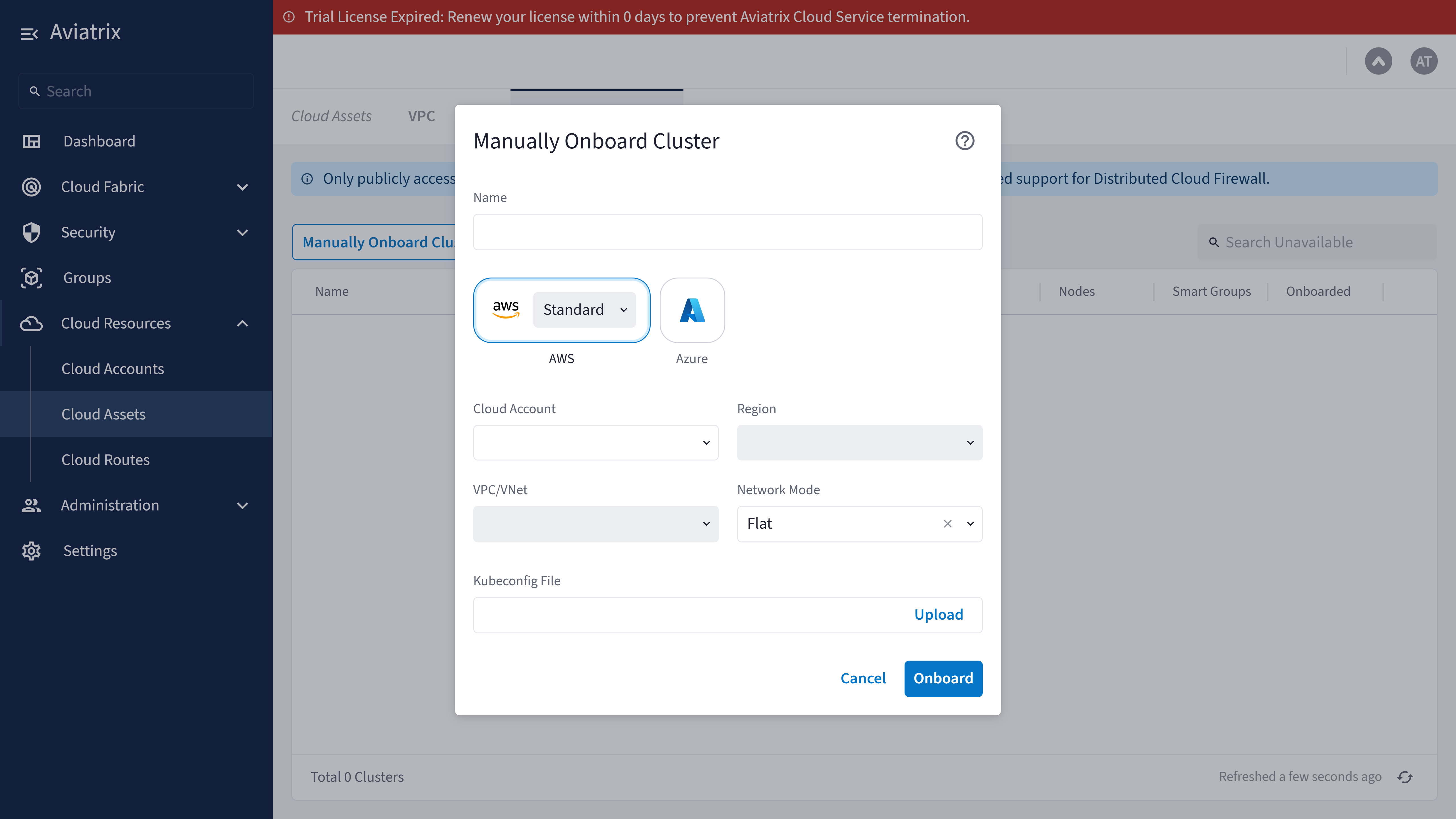 From the Aviatrix Cloud Console, navigate to **Cloud Assets > Kubernetes
Clusters** and wait for your cluster to appear with **Status = Not
Onboarded**.
Select your cluster, then click **Onboard Cluster**. Install the Aviatrix
Helm chart in the cluster, using the install commands shown in the dialog.
This step is required for every onboarding method.
Choose **Terraform**, **Command Line**, or **Upload Kubeconfig File**, and
follow the instructions shown for that method. Select the checkbox
confirming that you installed the Helm chart (and, for Terraform or
Command Line, that you ran the generated script), then click **Onboard**.
Confirm that **Onboarded = Yes** and that the pod count is greater than
zero. Open the **Pods** view and confirm that your AI client pods appear
by name — for example, an Ollama, Claude, Bedrock, or GitHub client pod.
### AWS Permissions (Read-Only)
AgentGuard requires the following read-only permissions on the onboarded role.
| Permission | Used for |
| - | - |
| `ec2:DescribeVpcs`, `DescribeSubnets`, `DescribeInstances`, `DescribeSecurityGroups` | Discovering virtual machines and VPCs |
| `eks:ListClusters`, `DescribeCluster`, `ListNodegroups` | Discovering Kubernetes clusters |
| `ec2:DescribeFlowLogs`, `s3:GetObject` | Reading VPC flow logs for risk scoring |
| `bedrock:ListAgents`, `GetAgent` | Discovering AWS Bedrock agents (optional) |
## Troubleshooting
Confirm that the **AWS Role ARN** pasted into Aviatrix matches the
**AviatrixRoleAppARN** value from the CloudFormation stack **Outputs**
tab, and that the CloudFormation stack reached **CREATE\_COMPLETE**. The
validation error identifies any missing permission.
Confirm that the account is **UP**, then confirm that the role has the
`eks:ListClusters` and `eks:DescribeCluster` permissions. Clusters appear
under **Cloud Assets > Kubernetes Clusters** after the account syncs.
## Next Steps
Setup is complete when the account shows **Status = UP** and your workloads
appear under **Cloud Assets**. Refer to the following for the level of visibility that matches your requirements:
* [Get Basic Visibility Without a Gateway](/docs/cloud/security/agentguard/getting-started/agentguard-without-gateway)
* [Get Deep Visibility and Enforcement With a Gateway](/docs/cloud/security/agentguard/getting-started/agentguard-with-gateway)
This documentation is built and hosted on [Mintlify](https://mintlify.com), a developer documentation platform.
From the Aviatrix Cloud Console, navigate to **Cloud Assets > Kubernetes
Clusters** and wait for your cluster to appear with **Status = Not
Onboarded**.
Select your cluster, then click **Onboard Cluster**. Install the Aviatrix
Helm chart in the cluster, using the install commands shown in the dialog.
This step is required for every onboarding method.
Choose **Terraform**, **Command Line**, or **Upload Kubeconfig File**, and
follow the instructions shown for that method. Select the checkbox
confirming that you installed the Helm chart (and, for Terraform or
Command Line, that you ran the generated script), then click **Onboard**.
Confirm that **Onboarded = Yes** and that the pod count is greater than
zero. Open the **Pods** view and confirm that your AI client pods appear
by name — for example, an Ollama, Claude, Bedrock, or GitHub client pod.
### AWS Permissions (Read-Only)
AgentGuard requires the following read-only permissions on the onboarded role.
| Permission | Used for |
| - | - |
| `ec2:DescribeVpcs`, `DescribeSubnets`, `DescribeInstances`, `DescribeSecurityGroups` | Discovering virtual machines and VPCs |
| `eks:ListClusters`, `DescribeCluster`, `ListNodegroups` | Discovering Kubernetes clusters |
| `ec2:DescribeFlowLogs`, `s3:GetObject` | Reading VPC flow logs for risk scoring |
| `bedrock:ListAgents`, `GetAgent` | Discovering AWS Bedrock agents (optional) |
## Troubleshooting
Confirm that the **AWS Role ARN** pasted into Aviatrix matches the
**AviatrixRoleAppARN** value from the CloudFormation stack **Outputs**
tab, and that the CloudFormation stack reached **CREATE\_COMPLETE**. The
validation error identifies any missing permission.
Confirm that the account is **UP**, then confirm that the role has the
`eks:ListClusters` and `eks:DescribeCluster` permissions. Clusters appear
under **Cloud Assets > Kubernetes Clusters** after the account syncs.
## Next Steps
Setup is complete when the account shows **Status = UP** and your workloads
appear under **Cloud Assets**. Refer to the following for the level of visibility that matches your requirements:
* [Get Basic Visibility Without a Gateway](/docs/cloud/security/agentguard/getting-started/agentguard-without-gateway)
* [Get Deep Visibility and Enforcement With a Gateway](/docs/cloud/security/agentguard/getting-started/agentguard-with-gateway)
This documentation is built and hosted on [Mintlify](https://mintlify.com), a developer documentation platform.