> ## Documentation Index
> Fetch the complete documentation index at: https://docs.aviatrix.com/llms.txt
> Use this file to discover all available pages before exploring further.
# View All VPC/VNet Cloud Routes
> View all route tables in Aviatrix PaaS
The Aviatrix PaaS console provides a consolidated view of your network paths for
all your onboarded clouds on the **Cloud Resources > Cloud Routes > VPC/VNet
Routes** page.
You can view route tables for all VPCs and VNets in your cloud environment,
including the individual routes associated with each route table. This
information is useful for understanding how traffic flows through your network
and for diagnosing any potential routing issues.
For multicloud environments, cloud engineers can view the information in a
central place without having to log in to individual cloud provider consoles.
 You can also view route tables per VPC or VNet from **Cloud Resources > Cloud
Assets > VPC/VNets & Subnets**.
To view the list of route tables, do the following:
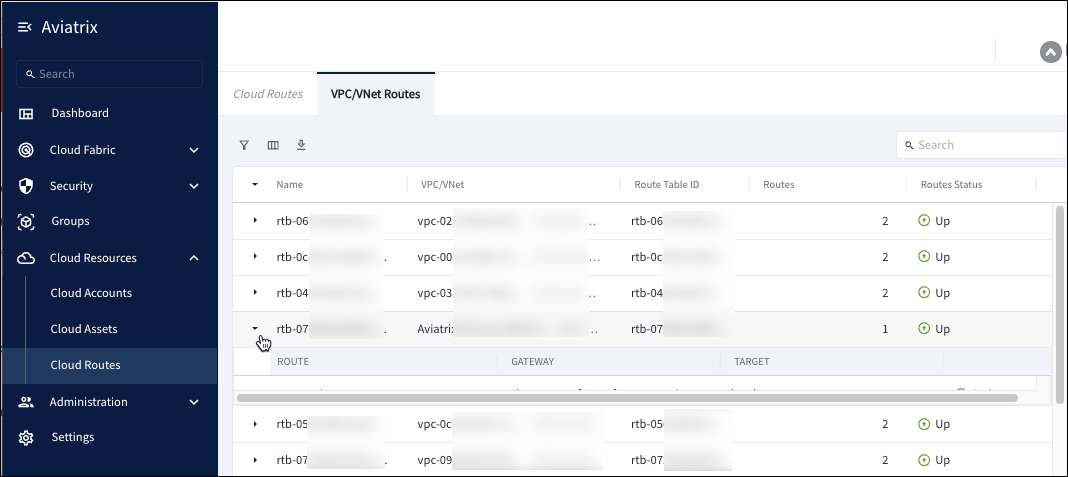
1. Go to **Cloud Resources > Cloud Routes > VPC/VNet Routes**.
2. In the table, you can view the following information about route tables:
| Field | Description |
| - | - |
| Name | The user-assigned name for the route table. |
| VPC/VNet | The ID of the VPC or VNet with which the route table is associated. |
| Route Table ID | The unique identifier assigned to the route table by your cloud provider. |
| Routes | The number of routes stored in the route table. |
1. Click the accordion icon in any row to expand the sub-row and view the
following details about a specific route table:
| Field | Description |
| - | - |
| Route | The IP address of a specific route in the route table. Allows you to view all routes across which a subnet is propagated that includes the specific IP address. |
| ID | The unique identifier assigned to the route by your cloud provider. |
| Target | The resource to which traffic is directed. |
| Routes Status | The status of each route in the route table. Route status can be any of the following. AWS status:
You can also view route tables per VPC or VNet from **Cloud Resources > Cloud
Assets > VPC/VNets & Subnets**.
To view the list of route tables, do the following:
1. Go to **Cloud Resources > Cloud Routes > VPC/VNet Routes**.
2. In the table, you can view the following information about route tables:
| Field | Description |
| - | - |
| Name | The user-assigned name for the route table. |
| VPC/VNet | The ID of the VPC or VNet with which the route table is associated. |
| Route Table ID | The unique identifier assigned to the route table by your cloud provider. |
| Routes | The number of routes stored in the route table. |
1. Click the accordion icon in any row to expand the sub-row and view the
following details about a specific route table:
| Field | Description |
| - | - |
| Route | The IP address of a specific route in the route table. Allows you to view all routes across which a subnet is propagated that includes the specific IP address. |
| ID | The unique identifier assigned to the route by your cloud provider. |
| Target | The resource to which traffic is directed. |
| Routes Status | The status of each route in the route table. Route status can be any of the following. AWS status: - Active
- Blackhole (unavailable)
Azure status: - Deleting
- Failed
- Succeeded
- Updating
|
1. You can filter the table, show or hide columns, and download the route table
data in CSV or XLSX format by using the icons above the table.
 This documentation is built and hosted on [Mintlify](https://mintlify.com), a developer documentation platform.